Complete Guide to Learning WordPress: Architecture, Themes, Plugins & Data
A practical roadmap to learning WordPress from scratch—covering how files and MySQL tables fit together, how to choose themes and plugins safely, and how CMS data stays organized.

Virtual Assistant & Data Entry Specialist
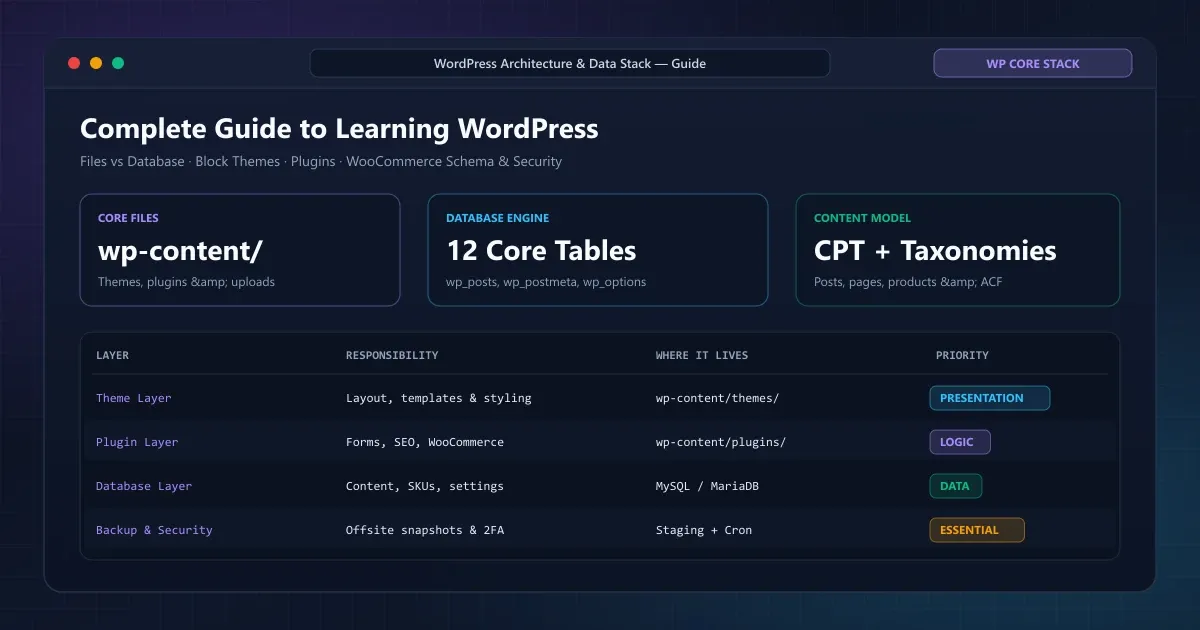
Most WordPress tutorials teach you which buttons to click in the dashboard without ever explaining what happens behind the screen when you publish a page or upload a product.
Once you understand the separation between WordPress core files, themes, plugins, and the MySQL database, troubleshooting stops feeling like guesswork.
Over seven years of WordPress and e-commerce data operations, I have noticed that the people who work fastest in WordPress are not necessarily full-time PHP developers.
They are operators who understand how content types, taxonomies, custom fields, and media folders actually fit together.
Whether you are building your first site, preparing to work as a CMS virtual assistant, or managing a growing WooCommerce catalog, this guide breaks WordPress down into clear building blocks.
How Every WordPress Request Renders
The Core Mental Model: Files vs. Database
Every self-hosted WordPress.org installation lives in two separate places on your hosting server: a folder of files and a relational database.
If you delete your files without touching the database, your articles, products, and settings still survive—though the design disappears. If you wipe the database without a backup, your content is gone even if the theme files remain.
| Location | What Lives Here | Safe to Edit? |
|---|---|---|
| wp-admin/ & wp-includes/ | Core WordPress engine files overwritten during every update. | Never edit directly. |
| wp-content/themes/ | Your active theme (layout, fonts, colors, templates). | Use a Child Theme or Site Editor. |
| wp-content/plugins/ | Installed extensions (WooCommerce, SEO, forms, security). | Update via Dashboard / WP-CLI. |
| wp-content/uploads/ | Year/month folders holding all uploaded images and PDFs. | Optimize before uploading. |
| wp-config.php | Database credentials, security salts, and debug flags. | Edit carefully with backup. |
How WordPress Stores Content in the Database
A fresh WordPress installation creates twelve core tables inside MySQL or MariaDB, detailed in the WordPress Database Description. You only need to master four of them to understand 95% of CMS data work:
wp_posts: Stores blog posts, static pages, navigation menu items, media attachment records, and WooCommerce products—all distinguished by a singlepost_typecolumn.wp_postmeta: Holds key-value metadata attached to each post ID, such as SKU numbers, prices, stock counts, SEO titles, and ACF custom fields.wp_terms&wp_term_taxonomy: Manage categories, tags, product attributes, and custom taxonomies cleanly without duplicating names.wp_options: Keeps global site settings likesiteurl,home, active plugins, and permalink structure.
Once you see that a WooCommerce product is simply a row in wp_posts plus attributes in wp_postmeta, tasks like bulk product CSV imports and taxonomy cleanup become straightforward.
Themes vs. Plugins & The Modern Block Editor
Beginners frequently confuse themes and plugins—or install bloated multi-purpose themes that bundle dozens of features inside theme code.
Keep a strict boundary between the two:
- Themes control appearance: Typography, spacing, header/footer layout, and page templates belong in your theme.
- Plugins control functionality: Contact forms, e-commerce carts, SEO schemas, custom post types, and redirects belong in plugins so your data survives if you ever switch themes.
In modern WordPress, the Gutenberg Block Editor powers both post layouts and Full Site Editing (FSE) templates. Learning lightweight block themes such as Ollie, Kadence, or GeneratePress saves huge page-load overhead compared to heavy legacy page builders.
Posts, Pages, Permalinks & Media Hygiene
Setting up structure correctly on day one prevents years of messy URLs and slow page loads later:
- Use Pages for timeless anchors: Home, About, Services, Case Studies, Contact, and Privacy Policy should be Pages, not Posts.
- Use Posts for dated, categorized articles: Group guides into clear, broad Categories (three to six total) instead of creating fifty empty tags.
- Lock Permalinks early: Go to Settings → Permalinks and choose Post name (
/%postname%/). Avoid date-based URLs unless you run a daily newsroom, and never change permalinks on an established site without adding 301 redirects. - Resize & compress images before upload: Uploading raw 4 MB camera photos slows down pages and fills hosting storage. Convert banners to WebP under 150 KB and add descriptive alt text on upload.
A Lean, Reliable Starter Plugin Stack
Every extra plugin adds database queries, JavaScript files, and potential security surface. Start with one trusted tool per job rather than stacking overlapping plugins:
- SEO & Sitemaps: Rank Math or Yoast SEO (never run both at the same time).
- Backups: UpdraftPlus or WPvivid configured to push automated weekly backups to Google Drive or S3.
- Security: Strong unique admin usernames (never "admin"), two-factor authentication, and a lightweight firewall or Cloudflare WAF.
- Caching & Performance: LiteSpeed Cache (on LiteSpeed servers) or WP Rocket / FlyingPress on standard hosts.
- Forms: Fluent Forms or WPForms with spam protection (Turnstile or Honeypot) and SMTP mail delivery so notifications never land in spam.
Maintenance, Staging & Safe Operations
Professional WordPress maintenance follows one rule: never test major updates on a live store during peak traffic hours.
Before updating WooCommerce, PHP versions, or complex themes, take a full offsite backup and test on a staging clone first.
If you delegate site updates or catalog entry to a virtual assistant, create role-scoped Editor or Shop Manager accounts instead of sharing a single master Administrator login.
How WordPress Scales Into E-Commerce & Bulk Data Operations
Once you understand WordPress posts, taxonomies, and metadata, scaling into WooCommerce or custom CMS directories becomes predictable.
WooCommerce does not invent a completely separate CMS. It registers a product custom post type inside wp_posts and stores SKUs, pricing, stock status, and shipping dimensions in wp_postmeta.
Product categories, brands, and variation attributes (such as Color and Size) live inside wp_terms and wp_term_taxonomy, connected to each product by ID.
That single architectural insight explains why raw spreadsheet hygiene matters so much when managing a WordPress store:
- Parent-Child Variation Mapping: Every variable shirt or hardware part has one parent row and multiple child variation rows linked by parent SKU.
- Attribute Consistency: Writing "Blue" on one product and "blue " with a trailing space on another creates duplicate filter terms in the sidebar.
- Image Attachment Hygiene: Pointing CSV imports directly to validated HTTPS media URLs avoids duplicate gallery uploads inside
wp-content/uploads/. - Database Bloat Control: Clearing expired WooCommerce transients, post revisions, and trashed SKUs keeps MySQL queries snappy even at 10,000+ products.
If you want to connect your WordPress store directly to automated spreadsheet workflows, explore our guides on WooCommerce variable product matrices and automated supplier inventory feed syncing.
A Realistic 30-Day WordPress Learning Roadmap
Trying to learn everything in one weekend leads to tutorial fatigue. Whenever I onboard a junior assistant onto WordPress tasks, I walk them through this four-week progression using a free local setup such as LocalWP:
- Week 1 — Core Foundations: Install WordPress locally, configure clean permalinks, learn the Block Editor, and build five structured pages from scratch.
- Week 2 — Media, Menus & Taxonomies: Practice WebP image compression, navigation menus, category hierarchies, and clean form routing with SMTP logs.
- Week 3 — Custom Fields & WooCommerce Data: Register a simple Custom Post Type with Secure Custom Fields (SCF/ACF), then import a 50-row test product CSV cleanly.
- Week 4 — Backups, SSL & Performance QA: Run manual backup restores, practice serialization-safe URL replacements, and audit Core Web Vitals using PageSpeed Insights.
Field Note: Lessons From Auditing Bloated WordPress Sites
Early in my WordPress work, I broke a staging site by running a quick raw SQL string replacement directly inside wp_options.
Changing a domain URL inside a PHP-serialized string without updating its byte length wiped out the site's entire widget and theme layout in one click. That single mistake taught me why WordPress internals matter.
On another store audit I ran years later, the dashboard felt painfully slow—admin screens took eight seconds to open, and product CSV imports kept timing out.
When I opened the Plugins list, I counted forty-seven active plugins. Nearly twenty of them were leftover sliders, duplicate SEO addons, and unused page-builder widgets nobody had touched in years.
I took a full backup first, cloned the site to staging, and stripped out every redundant plugin while merging their leftover shortcodes into native WordPress blocks.
I also cleaned out tens of thousands of expired transient rows inside wp_options and removed orphaned product attributes inside wp_terms.
Without buying faster hosting, admin load times dropped back under two seconds. That is why I always tell beginners: master how tables, themes, and plugins interact before chasing fancy add-ons.
Whenever I inherit an unfamiliar WordPress install today, my first ten minutes follow the exact same order: check PHP version in Site Health, confirm an active offsite backup, scan wp_options autoload size, and verify SSL and permalink settings.
That quick routine reveals nine out of ten hidden bottlenecks before I touch a single page or product row—saving hours of blind trial-and-error debugging later.
Need hands-on help cleaning product catalogs, restructuring WordPress taxonomies, or managing recurring CMS publishing? Check our CMS data management services to see how structured workflows keep WordPress sites fast and error-free.
Practicing Safely With Local Environments Before Touching Live Sites
The fastest way to move from reading WordPress tutorials to trusting your instincts on real client stores is spinning up a disposable local sandbox using free desktop tools like LocalWP. Having an offline copy on your laptop removes the fear of breaking a live production storefront while experimenting with WooCommerce product CSV imports, child theme stylesheets, permalink flushes, or database cleanups.
Set yourself a focused habit every weekend during your first month: intentionally import a messy fifty-row sample spreadsheet, fix broken category assignments via exports or WP-CLI, test restoring a broken site from a clean backup archive, and benchmark load times before versus after pruning heavy plugins. Hands-on troubleshooting in a safe local environment builds lasting confidence far faster than passive video playlists.
Frequently Asked Questions
Common operational inquiries related to Complete Guide to Learning WordPress: Architecture, Themes, Plugins & Data
Ready to Delegate Catalog, Spreadsheet & Admin Workflows Safely?
Onboard a specialist VA who writes clean SOPs, scopes access properly, and tracks hours transparently. Book a free 15-minute discovery call to start.

Written by Wp Hossain (Mikail Hossain)
Senior Catalog & E-Commerce Specialist with 7+ years handling multi-thousand-SKU WooCommerce, Shopify, and supplier CSV migrations (4.9/5 across 82 Fiverr reviews).